Blur Image Online
To blur an image for free, add it here, drag a box, circle or brush over the faces, plates or text you want to hide, pick blur, pixelate or black box, and download it at full size. No sign-up, no watermark, and the photo never leaves your browser.
Drop a photo to blurChoose a photo to blur
Any photo: JPG, PNG, iPhone HEIC and moreor paste it with Ctrl+V
Processed in your browser — never uploaded
Effect
Shape
Drag over the part you want to hide.
More options
File type
- Price
- Free, no limits
- Account
- Not needed
- Watermark
- None
- Uploads
- None, runs in your browser
- Formats
- JPG, PNG, WebP, HEIC, GIF, AVIF, BMP
- Works on
- Phone, tablet, computer
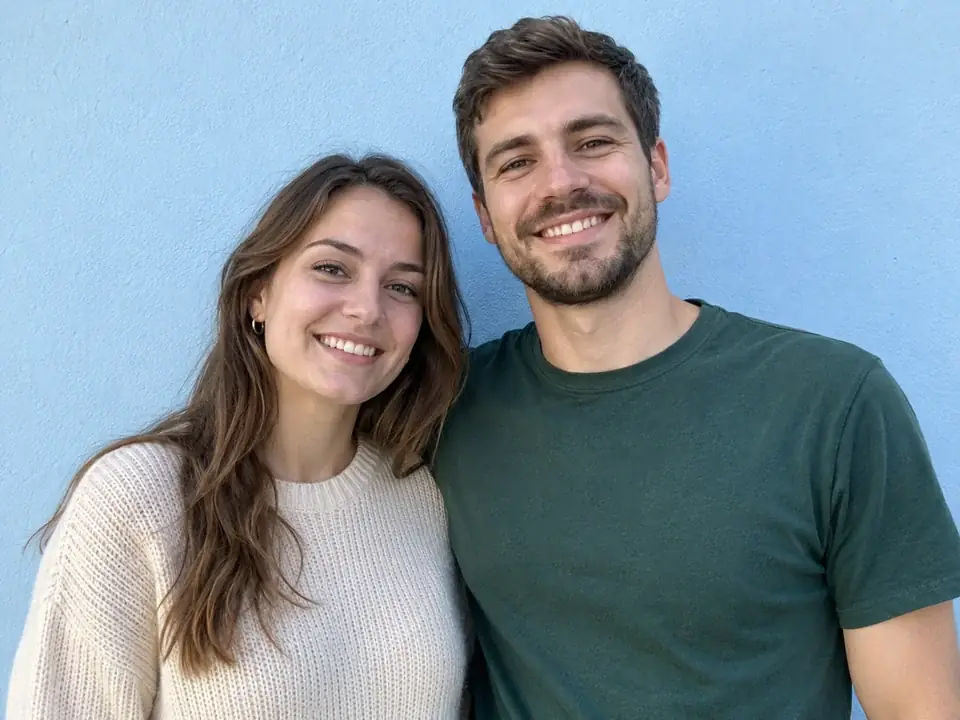
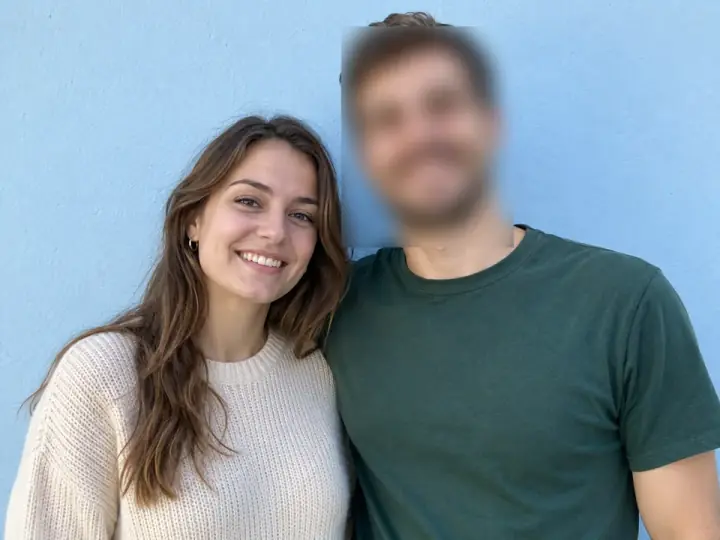
Blurred image examples: before and after
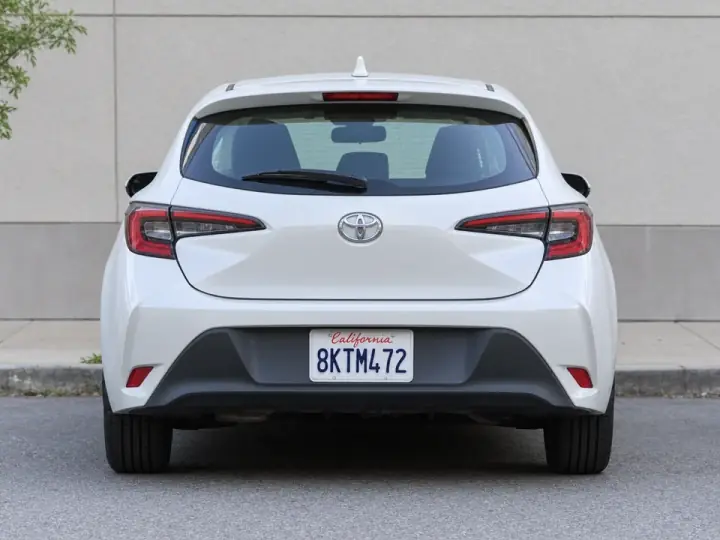
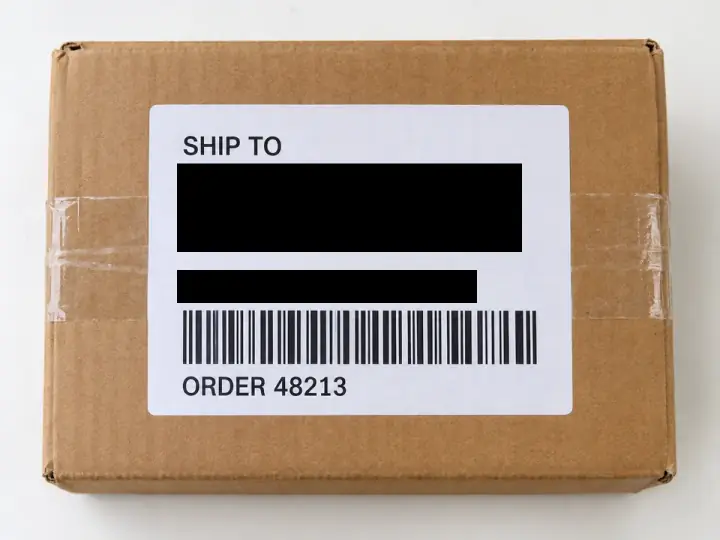
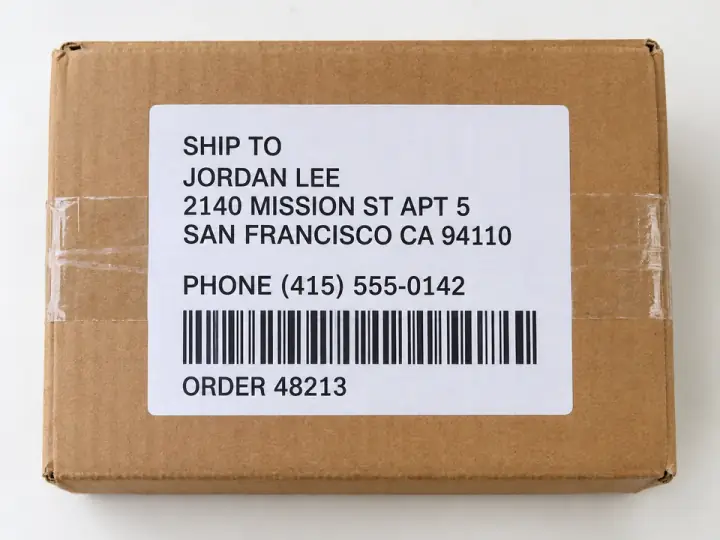
Each result below was made with the tool on this page. Drag across an image to compare before and after.
Blur
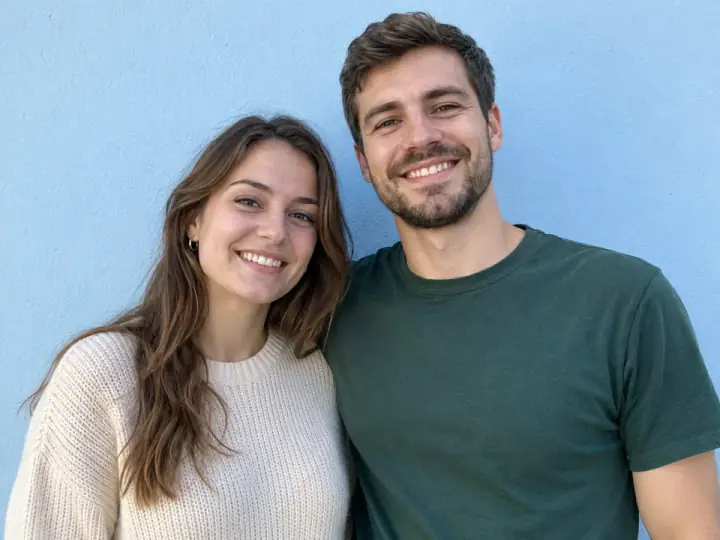
Pixelate
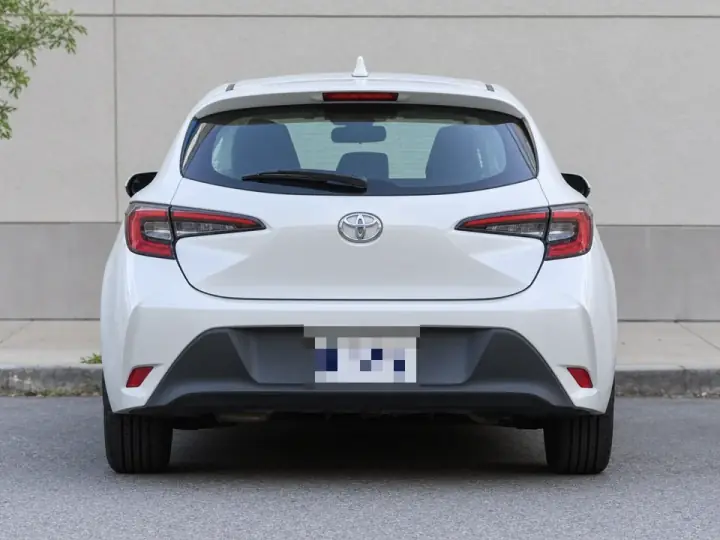
Black box
How to blur an image
The steps are the same on a computer and in a phone browser. There is no app to install.
Add your photo
Choose a photo, drag it in, or paste it. JPG, PNG, WebP, HEIC, GIF, AVIF and BMP open right on your device.
Choose what to hide
Drag a box or circle, brush over an uneven area, blur the whole photo, or blur the background and keep one part clear.
Adjust and download
Move, resize or delete any area, fade its edge, tap Show original to check against the original, then download at full size.
Every area stays editable until you download: click or tap it to move it, drag a corner to resize it, or change its effect and strength. Fade edge (under More options) blends the border into the photo so a blurred face doesn't look like a pasted box. To blur a background, draw a shape around the person, open More options, tick "Blur the background instead", and everything outside the shape is blurred. The strength slider scales with the size of your photo, so the same setting gives a similar look on a small screenshot and a large camera image.
Blur, pixelate or black box?
All three hide detail. Pick the one that fits what you're hiding and where the image is going.
| Effect | What it looks like | Best for |
|---|---|---|
| Blur | A soft, natural-looking haze | Faces, bystanders and backgrounds in photos you'll share on social media |
| Pixelate | Visible mosaic blocks | License plates, logos, and making it obvious that part of the image was censored |
| Black box | A solid cover; nothing shows through | Text such as names, addresses, passwords, card and account numbers |
What can you blur in a photo?
Common reasons people blur part of an image before they post or send it.
Faces of strangers and kids
Blur faces in a street, event or school photo before you share it.
License plates
Hide the plate on a car listing, a dash-cam frame or a parking photo.
Names, emails and chat details
Cover personal info in screenshots of chats, orders and emails.
ID numbers and addresses
Black out numbers on a photo of a document or a package label.
Blur image FAQ
Is this blur image tool free?
Yes. There is no sign-up, no watermark and no limit on how many images you blur.
Are my photos uploaded to a server?
No. The image is processed in your browser with HTML canvas and never leaves your device, and closing the tab clears it. The download is redrawn from the pixels, so camera details stored in the original file, such as GPS location, are not copied into the blurred image.
How do I blur only part of an image?
Pick Box or Circle and drag over the area, or pick Brush and paint over it. You can add as many areas as you like, and each one can be moved, resized or deleted before you download. The rest of the photo stays sharp.
How do I blur a face in a photo?
Choose Blur and Circle, then drag over each face you want to hide; the circle stretches into an oval that follows the shape of a face more closely than a box. You decide exactly which faces are covered, so the people you want to show stay sharp. More tips to blur a face in a photo
How do I pixelate an image instead of blurring it?
Choose Pixelate under Effect, then drag over the area, or open More options and press Pixelate the whole photo. Move Block size to the right for bigger blocks. More on how to pixelate an image
How strong should the blur be for faces or license plates?
The default strength of 6 hides most faces and plates in an everyday photo. For a close-up face, small text or anything sensitive, go to 8–10 or use Black box. Tap Show original to check the result against the original before you share it.
Can I blur an image on iPhone or Android?
Yes. Open this page in Safari, Chrome or another modern mobile browser, choose a photo, and drag with your finger to select the area. iPhone HEIC photos open directly. On iPhone, tap Download and then Save Image to put the blurred copy in Photos; the original stays as it was.
Which formats are supported, and is quality kept?
You can open JPG, PNG, WebP, HEIC, GIF, AVIF and BMP images; animated GIFs use the first frame. The download keeps the original width and height. JPG, PNG and WebP are saved in the same format by default, other formats as PNG, and under More options you can pick PNG, JPG or WebP before downloading.
Can someone unblur my image?
The downloaded file only contains the blurred pixels; the original detail is not stored in it. On small text a light blur can still be readable, so use a high strength or a black box for sensitive text.