Blur Image Blur face in photo
Blur a Face in a Photo
Hide one face or several in seconds. Add your photo, drag a circle or box over each face you want to hide, and download the result at full size. The photo never leaves your device.
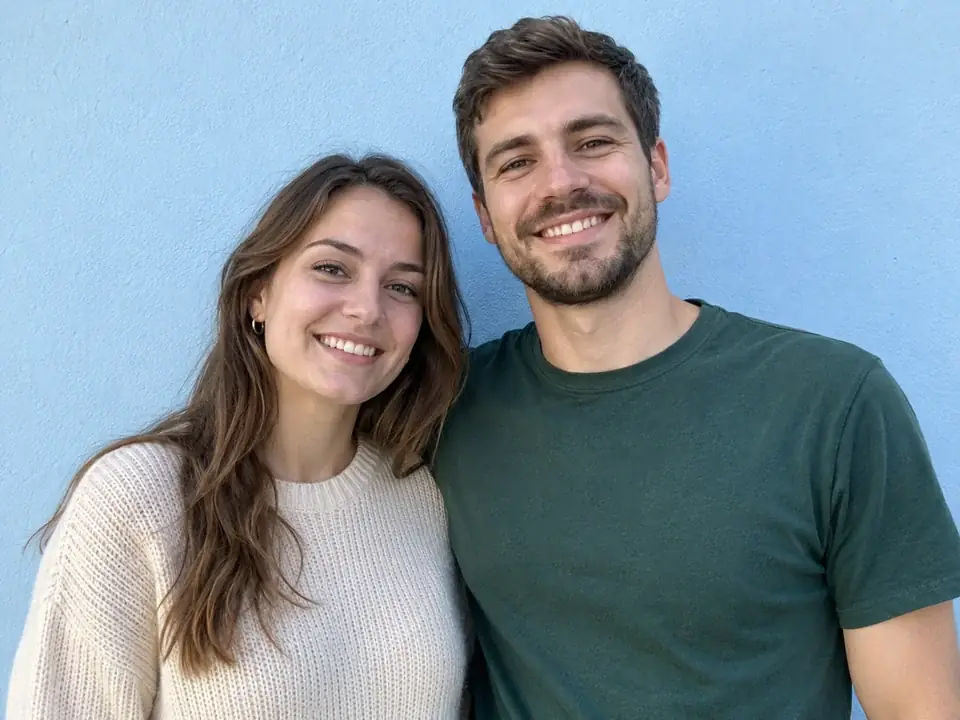
Drop a photo to blurChoose a photo to blur
Any photo: JPG, PNG, iPhone HEIC and moreor paste it with Ctrl+V
Processed in your browser — never uploaded
Effect
Shape
Drag over the part you want to hide.
More options
File type
Drag across the picture to compare before and after.
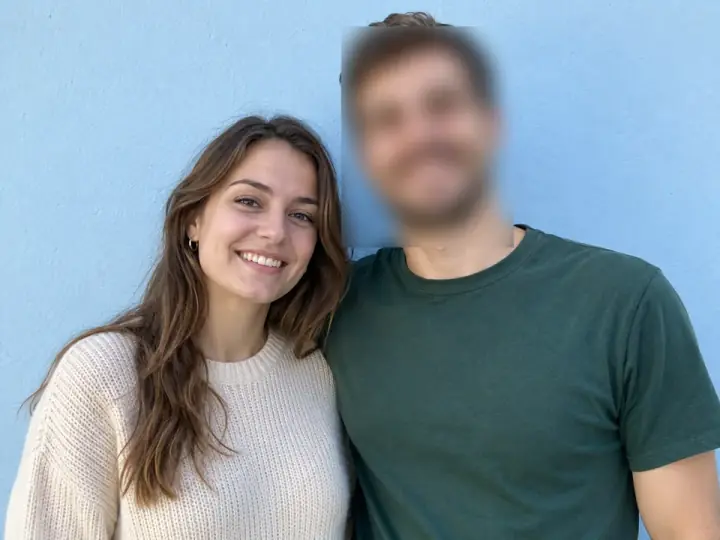
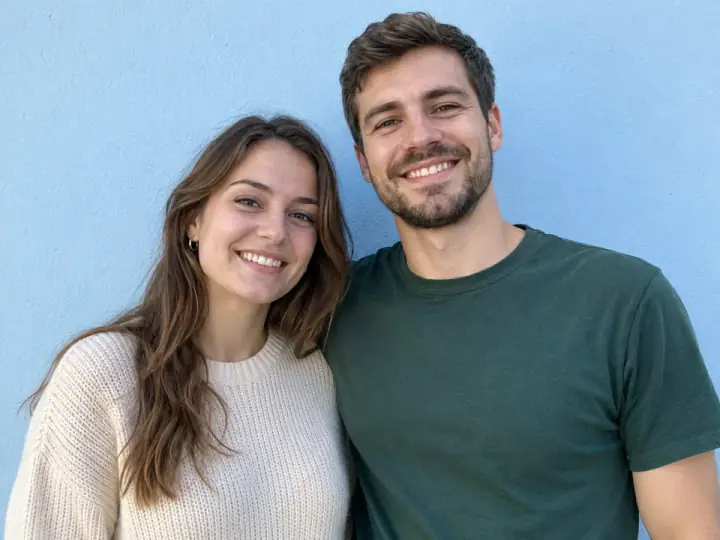
How to blur a face in a photo
- Add the photo. Choose it, drag it onto the box above, or paste it with Ctrl+V. JPG, PNG, WebP and iPhone HEIC photos all work.
- Keep the effect on Blur and choose Circle. The circle stretches into an oval, so it follows the shape of a face more closely than a box.
- Drag over the face. Cover the whole face from hairline to chin, plus a little margin. When you let go, that area is blurred.
- Adjust it. Drag the blurred area to move it, drag a corner to resize it, or open More options and raise Fade edge so the border blends into the photo.
- Repeat for every face, then download. The image keeps its original width and height.
Which faces to blur, and how much
A face only needs to be blurred enough that people who don't already know the person can't recognize them. How much that takes depends on how big the face is in the frame.
- Small faces in a crowd or a street photo: the default strength is usually enough, because there is little detail to begin with.
- A close-up or a face that fills a large part of the photo: click or tap the area and raise its strength to 8–10, or switch it to Pixelate so the face turns into large blocks.
- Anything that must stay unreadable, such as a face on an ID card or a badge photo: use Black box. Nothing shows through a solid cover.
Tap Show original to see the photo as it was, then tap Show result to go back. If you can still tell who it is, make the blur stronger.
Blur one face in a group photo
Group photos are where this comes up most: one friend doesn't want to be online, or a stranger walked into the frame. Because you place each area yourself, you decide exactly who is hidden. The people you want to show stay sharp, and so does the background. If someone is turned sideways or partly hidden behind another person, switch to Brush and paint over just the visible part of their face.
Keep one face sharp and blur the rest
Sometimes it's the other way around: you want one person in focus and everyone else hidden. Draw a circle around that person, open More options, tick Blur the background instead, and the rest of the photo is blurred, including faces in the background.
Blur a face on iPhone or Android
You don't need an app. Open this page in Safari or Chrome on your phone, tap Choose a photo, and pick the photo from your camera roll. Then drag across the face with one finger. On iPhone, tap Download and choose Save Image to put the blurred copy in Photos; on Android it goes to your downloads. The original photo in your gallery stays as it was.
Faces are not the only thing you can hide
The same steps work for license plates, name tags, house numbers and the text in a screenshot. To hide something other than a face, or to blur the whole picture at once, go back to the main tool and blur an image.
Blur face in photo FAQ
How do I blur a face in a photo for free?
Add the photo on this page, keep the effect on Blur, choose Circle, and drag over the face. Repeat for each face, then press Download. There is no sign-up and no watermark.
Can I blur one face and keep the others sharp?
Yes. Only the areas you select change, so you can blur a stranger in the background and leave everyone else in the group photo as it is.
How strong should the blur be?
Start at the default strength of 6. If you can still recognize the person, click or tap the blurred face and move the Strength slider higher; the change applies to that face only. Tap Show original to check it against the original.
Is my photo uploaded anywhere?
No. The face is blurred inside your browser with HTML canvas. The photo is not sent to a server, and closing the tab clears it.
Can I blur faces in a video?
No. This tool works with still images such as JPG, PNG, WebP and iPhone HEIC photos. For a video, take a screenshot of the frame you want to share and blur that.