Blur Image Pixelate image
Pixelate an Image
Turn any part of a photo into large square blocks, or pixelate the whole picture. Add your photo, drag over what you want to hide, set the block size, and download it at full size. Pixelate is already selected, and the photo never leaves your device.
Drop a photo to blurChoose a photo to blur
Any photo: JPG, PNG, iPhone HEIC and moreor paste it with Ctrl+V
Processed in your browser — never uploaded
Effect
Shape
Drag over the part you want to hide.
More options
File type
Drag across the picture to compare before and after.
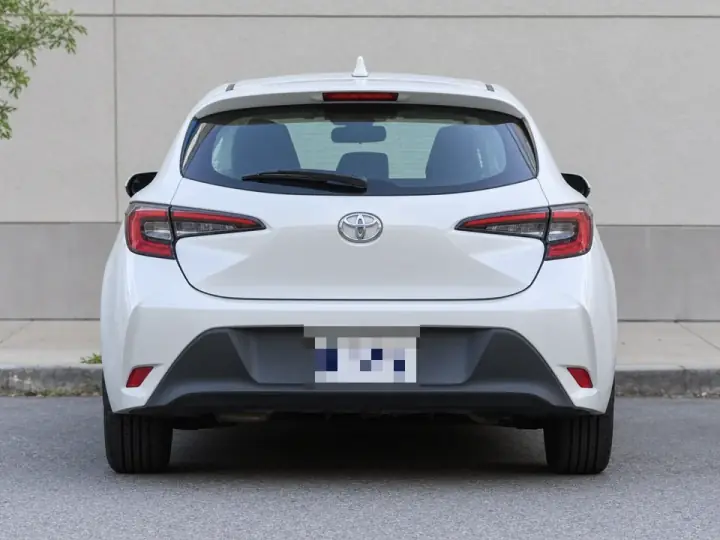
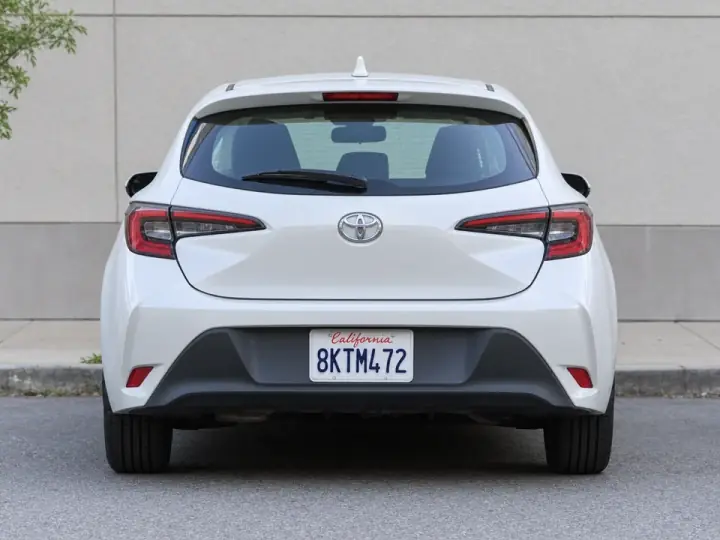
How to pixelate an image
- Add the photo. Choose it, drag it onto the box above, or paste it. JPG, PNG, WebP and iPhone HEIC photos all work.
- Check that Pixelate is selected. On this page it is chosen for you.
- Drag over what you want to hide. Use Box for plates and text, Circle for faces, or Brush for uneven shapes. When you let go, that area turns into blocks.
- Set the block size. Move the Block size slider. Right makes bigger blocks, left makes smaller ones.
- Download. The image keeps its original width and height.
Pixelate part of an image or the whole picture
Most people pixelate one part of a photo: a face in the background, a license plate, a name in a screenshot. Drag one area for each thing you want to hide; you can add as many as you need and move or resize each one before you download.
To pixelate the entire picture, open More options and press Pixelate the whole photo, then move Block size until the blocks look right. To keep one subject sharp and pixelate everything around it, draw a shape around the subject and tick Pixelate the background instead.
How big should the pixels be?
Move the Block size slider to the right for bigger blocks and to the left for smaller ones. The blocks grow with your photo, so the same number looks about the same on a small screenshot and a large camera photo. (For the curious: a block is about the photo's longest side × block size ÷ 250 pixels.)
- Block size 2–4: small blocks. The rough shape of a face or object still shows, but fine detail is gone. Good for bystanders and backgrounds.
- Block size 5–7: medium blocks. Usually enough to make a face or a license plate unrecognizable in an everyday photo.
- Block size 8–10: large blocks. Only rough colors remain.
Tap Show original to compare with the photo as it was, then Show result to go back. If you can still recognize what you meant to hide, make the blocks bigger.
Is pixelation safe for hiding text?
For faces and plates, a medium or large block size is usually enough. Short text is different: when the blocks are small, a password, an account number or a short name can sometimes be guessed back by software that tries many possible letters. For anything that must stay secret, make the blocks bigger or switch to Black box, which covers the text completely. Pixelate is better when you want people to see that something was censored, without a heavy black bar.
Pixelate an image on iPhone or Android
You don't need an app. Open this page in Safari or Chrome, tap Choose a photo, and drag over the area with your finger. On iPhone, tap Download and choose Save Image to put the pixelated copy in Photos. On Android it goes to your downloads. The original photo stays as it was.
Blur or pixelate?
Blur gives a soft, natural look that suits faces in photos you share on social media. Pixelate shows clear square blocks, so it is obvious that part of the image was hidden. If you are not sure, try both: switch the effect for a selected area and compare. For a soft blur instead, go to the main tool and blur an image.
Pixelate image FAQ
How do I pixelate an image for free?
Add the photo on this page. Pixelate is already chosen, so drag a box over the part you want to hide and press Download. To pixelate the whole picture, open More options and press Pixelate the whole photo. There is no sign-up and no watermark.
How do I make the pixels bigger?
Move the Block size slider to the right. It works on the area you selected, or on the whole photo if you pixelated all of it. The blocks grow with the size of your photo: a 4000-pixel phone photo at block size 6 gets blocks of about 96 pixels.
Can pixelated text be read again?
Sometimes. With small blocks over short text, such as a password or account number, tools exist that can guess the original. Use a large block size, or use Black box for anything that must stay unreadable.
Is my photo uploaded?
No. The image is pixelated in your browser with HTML canvas and is never sent to a server. Closing the tab clears it.
Can I make pixel art with this tool?
It makes a mosaic: each block takes the average color of the photo underneath. It does not reduce the colors to a small palette, so for bead patterns or game sprites a dedicated pixel-art tool fits better.